> ## Documentation Index
> Fetch the complete documentation index at: https://saba.mintlify.site/llms.txt
> Use this file to discover all available pages before exploring further.
# Video Players
Saba is compatible with the following macOS video players:
* [VLC](https://www.videolan.org/vlc/)
* [IINA](https://iina.io/)
## VLC
This video player works great out of the box. No extra configuration is necessary. 🎉
## IINA
If you prefer a modern interface with extensive support for most media formats and a Picture-in-Picture mode, this is the video player for you.
To get the best experience while using this video player, you may need to change a few settings that are enabled by default.
### 1. Disable default window launch behavior
By default, IINA will open media in a new window. This means that everytime you change the channel, a new window will open on top of the window that's currently playing.
Having five different channels stacked on top of each other is not a great experience. You should consider disabling this behavior, here's how to do it:
1. Open the IINA player desktop application then open the settings panel from the menu bar. (Keyboard shortcut: `⌘` + `,`)
2. In the settings page, head to **General** > **Behaviour** and disable the option:
* [ ] Always open media in new window
That's it! IINA is ready to use 🎉
### 2. Disable On Screen Display (Optional)
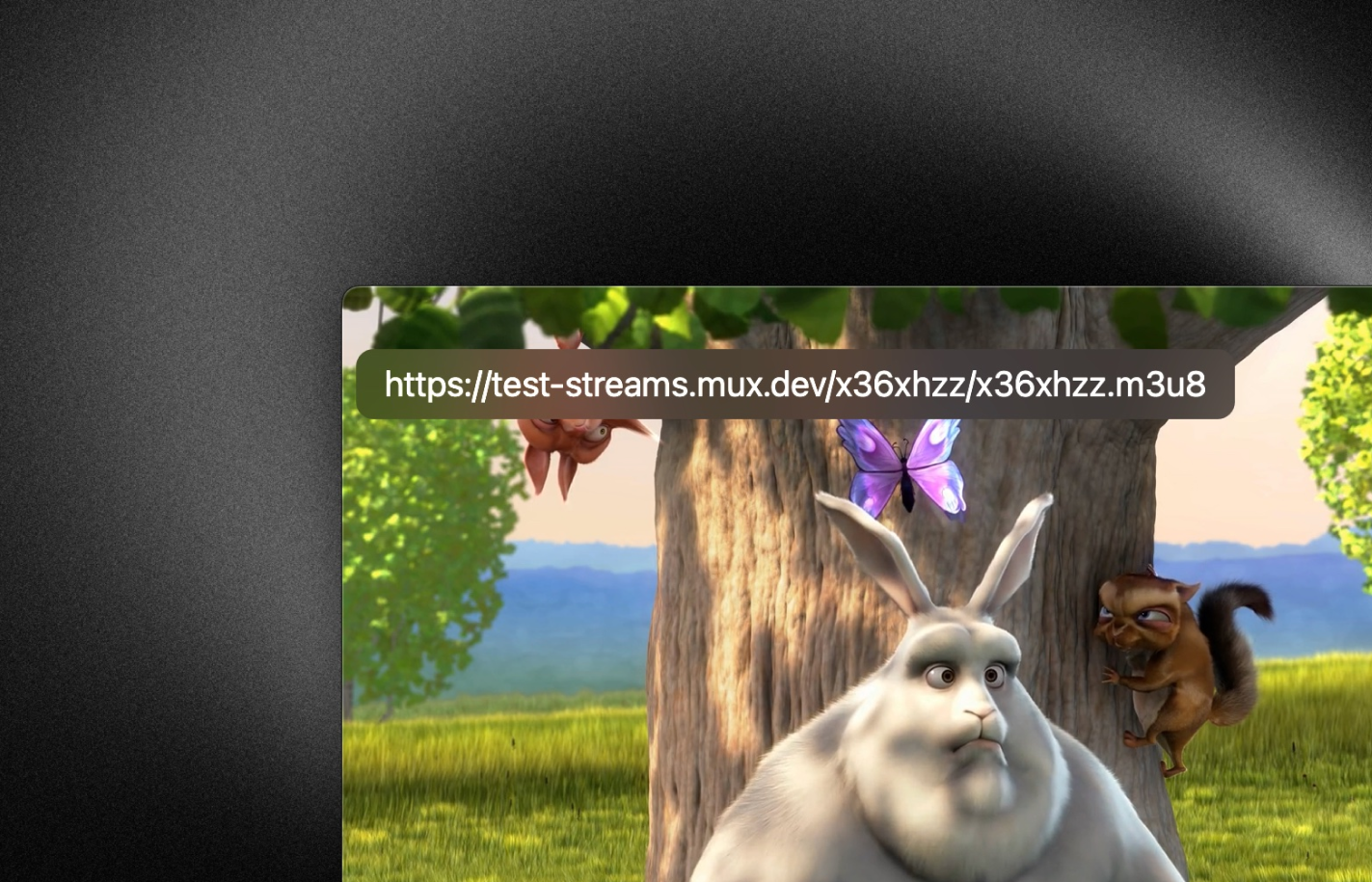 This step is optional.
Whenever you perform an action such as changing the volume or changing the channel, IINA will display a box in the upper-left corner showing the property that has been modified (See the [image](/guides/video-players#2-disable-on-screen-display-optional) above).
Some people may prefer a more minimal experience where this log of events does not show up on the screen.
1. In the settings page (`⌘` + `,`). Go to **UI** > **On Screen Display** and disable the option:
* [ ] Enable OSD
After disabling this option, those messages won't show up anymore.